

Before you begin
You will need:- A Xero user with the administrator role (called adviser in some regions), or a standard user whose access includes setting up connected apps. Viewer (read-only) and sales/purchases users can’t connect apps.
- A Stuut administrator account
- Pop-ups allowed for your Stuut dashboard. Xero’s sign-in opens in a pop-up window.
What Stuut syncs
Stuut only reads from Xero. It never creates, updates, or deletes anything in your Xero organisation, and it does not post payments back to Xero.
A few things to know:
- Stuut pulls Accounts Receivable invoices only. Bills (Accounts Payable) are never imported.
- Xero invoice statuses map to Stuut as follows: Draft stays draft; Submitted and Authorised are open; Paid is paid; Voided is void. An open invoice with a payment applied shows as partially paid in Stuut.
- Payment details come from the invoice itself (amount paid and fully-paid date). Stuut does not import Xero payment records, credit notes, prepayments, or overpayments as separate items.
- Stuut imports the contact record only. Additional contact persons listed on a Xero contact are not imported.
How often Stuut syncs
- First import: starts as soon as the connection is validated.
- Ongoing: every hour, Stuut fetches customers and invoices that changed since the last sync.
- Instant updates: Xero notifies Stuut when a contact or invoice is created or updated, and Stuut refreshes that record right away. If a record is deleted in Xero, Stuut removes it too.
Set up the connection
1. Open the Xero connector in Stuut
In Stuut, go to Settings → Connectors → All connectors, search for Xero, and click Add.2. Connect
Stuut shows Ready to connect Xero? Click Connect.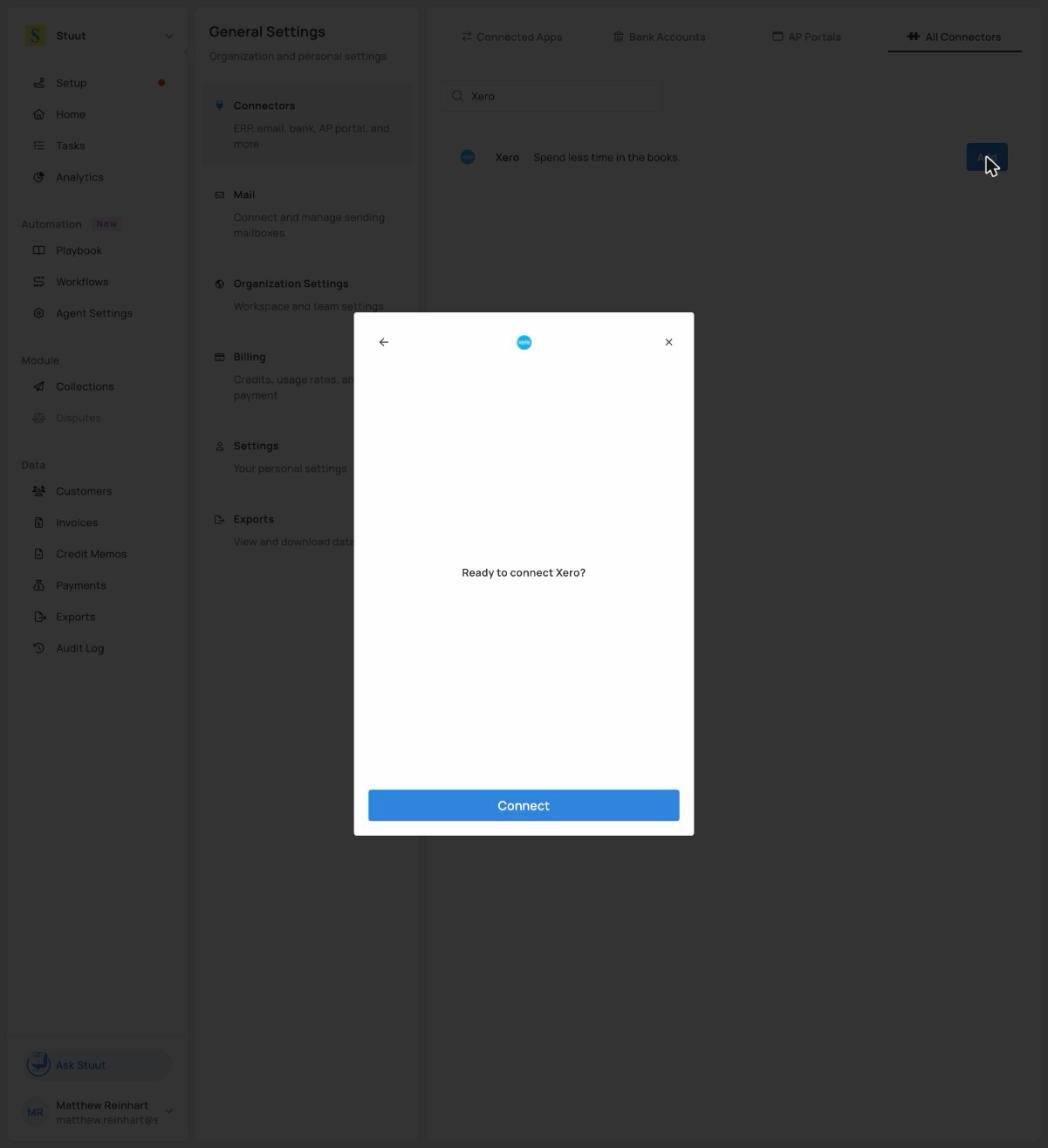
Connect Xero from Stuut
3. Sign in to Xero and allow access
- Sign in with your Xero user. If you’re already signed in to Xero in the same browser, Xero skips this step.
- Under Select an organisation, choose the organisation to connect. Stuut connects to a single organisation per connection.
- Review the access Stuut asks for and click Allow access.
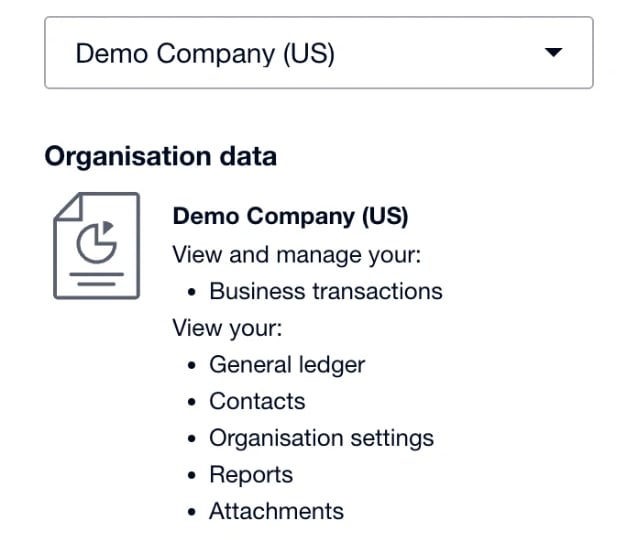
Xero's consent screen after choosing an organisation
4. Done
The connection appears under Settings → Connectors → Connected apps with a Linked badge, and the first import starts right away. Open the connection: the Overview tab lists the Invoices and Customers models with their sync status, which shows Done once the first import has finished. There are no optional settings for Xero.Manage the connection
Open Settings → Connectors → Connected apps and select Xero.- Check Health confirms Stuut can still read your Xero data and shows Xero’s error message if not.
- Sync starts a sync now instead of waiting for the next hourly one.
- Re-auth appears when the connection is unhealthy. It reopens the Xero sign-in so you can authorise Stuut again without deleting the connection.
- Settings → Delete integration disconnects Xero. Stuut also removes its connection from your Xero organisation and deletes the customers and invoices it imported from Xero.
Troubleshooting
Nothing happens when I click Connect
Nothing happens when I click Connect
Your browser blocked the pop-up. Allow pop-ups for your Stuut dashboard and try again.
"Failed to connect the integration" after allowing access
"Failed to connect the integration" after allowing access
Stuut could not read contacts from the organisation you chose. Make sure you picked the right organisation on Xero’s screen and that your Xero user is allowed to connect apps, then click Connect again.
The connection shows Unhealthy
The connection shows Unhealthy
Xero stopped accepting Stuut’s access. The usual causes are that the user who connected Stuut was removed from the organisation, Stuut was disconnected from Xero’s Connected apps page, or the connection sat idle for more than 60 days. Open the connection in Stuut and click Re-auth (any user allowed to connect apps can do this), then Check Health. Data already synced is kept.
A customer is missing in Stuut
A customer is missing in Stuut
Stuut imports contacts that Xero marks as customers, which Xero does once a contact has at least one sales invoice. A contact with no sales invoices is not imported. Stuut also skips a billing address that is missing its street, city, country, or postal code.
Bills appear to be missing
Bills appear to be missing
This is expected. Stuut imports Accounts Receivable invoices only and never pulls Accounts Payable bills.
Security
- Stuut connects over HTTPS and stores Xero access tokens encrypted at rest.
- Xero never shares your password with Stuut. You sign in on Xero’s own page, and you can revoke Stuut’s access at any time: in Xero, click your organisation name, choose Settings, then Connected apps, and disconnect Stuut.