

Before you begin
You will need:- A QuickBooks Online user who is the Primary admin or a Company admin. Intuit only lets admins connect apps; standard users, custom roles and reports-only users can’t.
- A Stuut administrator account.
- Pop-ups allowed for your Stuut dashboard. Intuit’s sign-in opens in a pop-up window.
What access Stuut asks for
On Intuit’s screen, Stuut requests two things:
Intuit grants Accounting access as a whole and does not offer a read-only version, so the consent screen describes broader access than Stuut uses. What Stuut actually reads and writes is listed in the next two sections. Stuut does not request access to QuickBooks Payments or Payroll.
What Stuut reads
A few things to know:
- Invoice status comes from the balance. An invoice with a balance is open in Stuut. An invoice with a zero balance shows as paid, and so does a voided invoice or an invoice with a zero total. Stuut does not show a separate void or draft status for QuickBooks invoices.
- Amount paid is the invoice total minus its open balance, so it includes credit memos applied to the invoice as well as payments.
- Deleted invoices are removed. On each sync Stuut checks a batch of invoices against QuickBooks and removes any that no longer exist there.
- Multicurrency is supported. Each record keeps the currency QuickBooks gives it. In a company without multicurrency, Stuut uses the company’s home currency.
- Custom fields are not imported by default, and neither is a purchase order number held in an invoice custom field. If you need either in Stuut, ask your Stuut contact; they are set up per organization.
- Stuut does not import estimates, sales receipts, refund receipts, statements, vendors, bills or products and services.
What Stuut writes
Stuut never edits or deletes customers, invoices, credit memos or accounts in QuickBooks. Stuut writes to QuickBooks in one case: when a payment is approved in Stuut Cash Application. If you use Stuut for Collections only, nothing is ever written. For each approved payment, Stuut creates one Receive Payment in QuickBooks:
Any part of the payment that is not applied to an invoice stays on the QuickBooks payment as unapplied customer credit.
Deductions and other adjustments
If the payment includes adjustments, for example a short-pay deduction or a surcharge, Stuut also creates one journal entry:- Each adjustment posts to the QuickBooks account mapped to that adjustment type in Stuut. A deduction debits its account and a surcharge credits it.
- The net of the adjustments posts to Accounts Receivable against the customer, and the payment is applied to that journal entry alongside the invoices.
- The journal entry number starts with
SAand its memo readsStuut payment adjustmentsfollowed by the Stuut payment ID.
- Every adjustment type used on the payment must be mapped to a QuickBooks account. Stuut checks this when you approve the payment and tells you which one is missing.
- The payment must be applied to at least one invoice.
- QuickBooks must have exactly one active Accounts Receivable account in the payment’s currency.
What Stuut will not post
Stuut refuses the following and shows the reason on the payment in Stuut:- A $0 payment. QuickBooks does not accept one.
- A payment applied to an invoice or credit memo that has not synced from QuickBooks yet. Run a sync and approve it again.
- A payment whose applied amounts add up to more than the payment.
How often Stuut syncs
- Every hour, Stuut fetches records that were created or changed in QuickBooks since the last sync, in this order: chart of accounts, customers, invoices, credit memos, payments.
- On demand: click Sync on the connection at any time.
Set up the connection
1. Open the QuickBooks Online connector in Stuut
In Stuut, go to Settings → Connectors → All connectors, search for QuickBooks, and click Add next to Quickbooks Online.2. Start the connection
Stuut shows Connect to QuickBooks Online. Click Continue.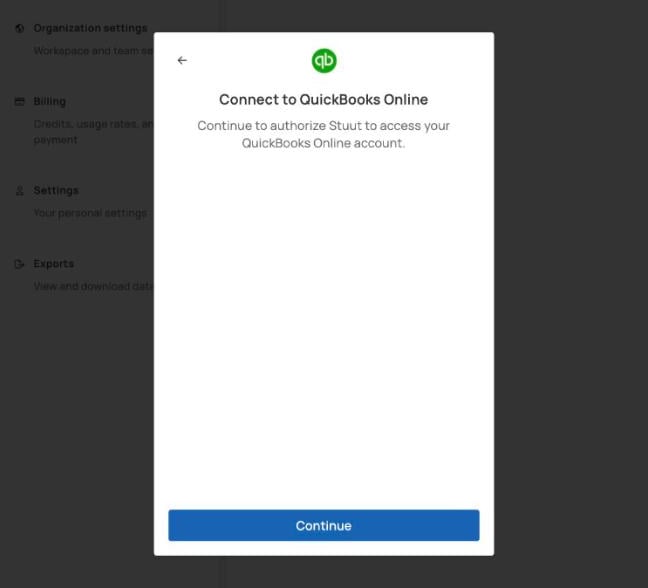
The first step of the QuickBooks Online connect dialog
3. Sign in to Intuit and approve access
Stuut shows Authorize Quickbooks Online. Click Open window.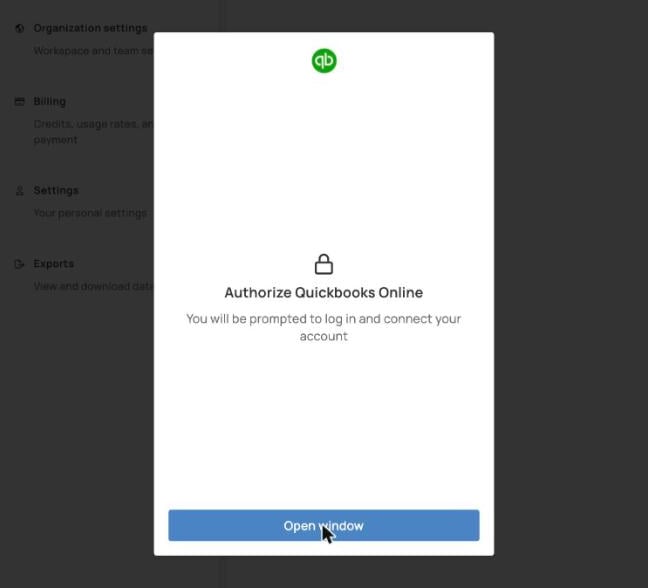
Open the Intuit sign-in window
- Sign in with your QuickBooks admin user. If you’re already signed in to Intuit in the same browser, Intuit skips this step.
- If your Intuit login has access to more than one company, choose the company to connect.
- Review the access Stuut asks for and click Connect.
4. Run the first sync
Stuut opens the connection, which shows a Linked badge. Click Sync to start the first import right away rather than waiting for the next scheduled one. The Overview tab lists the Credit Memos, Customers, Invoices, Ledger Accounts and Payments models. Each one shows Done when its import has finished, along with the time of the next sync.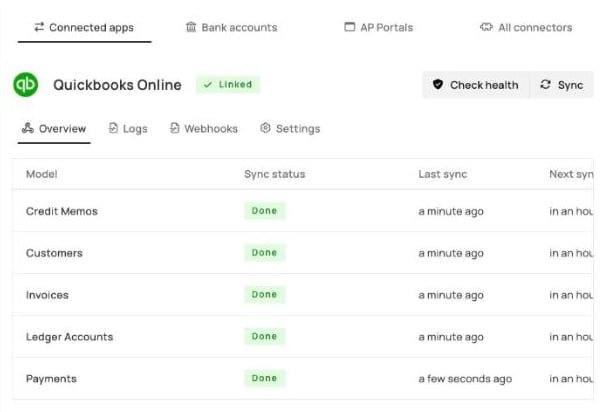
The connection after the first sync
Manage the connection
Open Settings → Connectors → Connected apps and select Quickbooks Online.- Check health confirms Stuut can still read your QuickBooks company.
- Sync starts a sync now instead of waiting for the next hourly one.
- Logs lists every request Stuut made to QuickBooks, with its status.
- Settings → Connection name gives the connection a friendly name, which helps when you have connected more than one company.
- Settings → Delete integration disconnects QuickBooks. Stuut revokes its own access at Intuit and deletes the customers, invoices and other data it imported from that company. Payments Stuut already posted stay in QuickBooks.
Troubleshooting
Nothing happens when I click Open window
Nothing happens when I click Open window
Your browser blocked the pop-up. Allow pop-ups for your Stuut dashboard and try again.
Intuit says I need admin permissions to connect
Intuit says I need admin permissions to connect
You are signed in to Intuit as a user who is not an admin of that company. Have the Primary admin or a Company admin make the connection, or ask them to make you a Company admin first.
The models still show no sync status after connecting
The models still show no sync status after connecting
Click Sync on the connection. Each model moves to Queued and then Done.
Failed requests or a model waiting to retry during the first import
Failed requests or a model waiting to retry during the first import
Intuit is limiting how fast Stuut can call your company. Stuut retries on its own and the model finishes a minute or two later. If a model is still not Done after an hour, contact Stuut support.
Check health fails on a connection that used to work
Check health fails on a connection that used to work
Intuit stopped accepting Stuut’s access. The usual causes are that someone disconnected Stuut from the company’s connected apps in QuickBooks, or that the connection was not used for 100 days. Intuit also requires every connection to be approved again after five years. Contact Stuut support to reconnect without losing synced data.
A payment approved in Stuut did not appear in QuickBooks
A payment approved in Stuut did not appear in QuickBooks
Open the payment in Stuut; the posting error is shown on it. The common causes are an adjustment type with no QuickBooks account mapped, an invoice that has not synced yet, or more than one active Accounts Receivable account in the payment’s currency when the payment has adjustments.
A voided invoice shows as paid in Stuut
A voided invoice shows as paid in Stuut
This is expected. QuickBooks reports a voided invoice with a zero balance, and Stuut treats any zero-balance invoice as paid, so it drops out of collections either way.
Security
- Stuut connects over HTTPS and stores QuickBooks access tokens encrypted at rest.
- Intuit never shares your password with Stuut. You sign in on Intuit’s own page.
- You can remove Stuut’s access at any time, either with Delete integration in Stuut or by disconnecting Stuut from your connected apps in QuickBooks.